Getting Started
Manage Targets
Manage Scans
Manage Organizations
Organization Settings
Plans
On Prem

Installation
Installation and License Activation
This section walks you through installing ZeroThreat On-Prem using the CLI and activating your license. The process is designed to be guided and interactive, with system checks and dependency installation handled automatically where possible.
Prerequisites
Before starting the installation, ensure the following requirements are met:
- Node.js: Latest stable version installed
- Disk space: At least 15 GB of free disk space
- Internet access: Required during installation to download system images
Note
Docker is not a direct prerequisite. If required, the ZeroThreat CLI installer can install and configure Docker as part of the setup process.
Official reference
- Node.js downloads https://nodejs.org/en/download
Step 1: Install ZeroThreat CLI
Install the ZeroThreat CLI globally using npm:
npm install -g @zerothreatai/cli
This command installs the CLI tool that manages installation, configuration, and lifecycle operations for On-Prem deployments.
Troubleshooting
- If you see permission errors, ensure you have sufficient privileges
- If npm fails due to Node version issues, upgrade to the latest stable Node.js release
Step 2: Launch the Installer
Once installation completes, start the installer by running:
zt
This opens the interactive On-Prem installer, which guides you through system checks, dependency installation, and license activation.

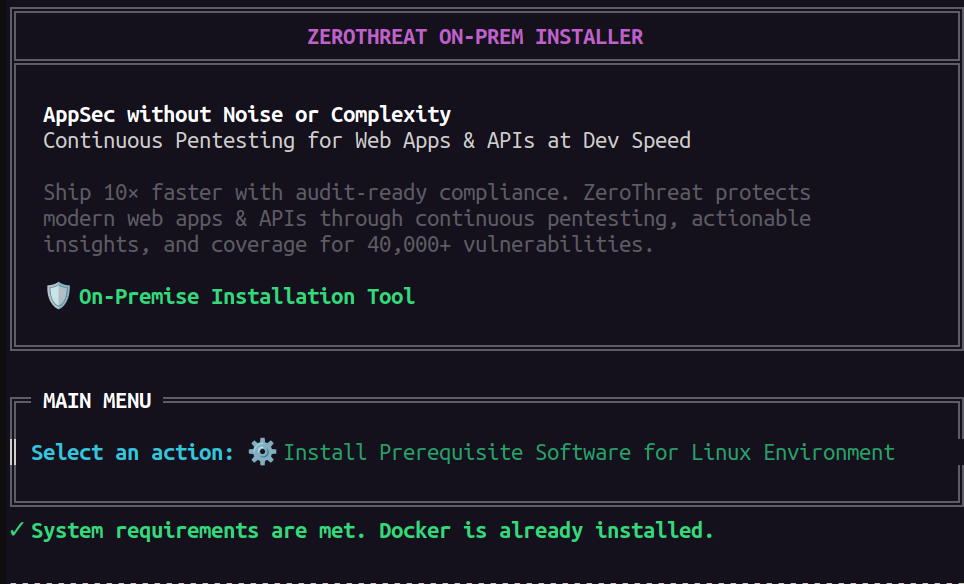
Step 3: Install Prerequisite Software (if prompted)
If the installer detects missing system dependencies, select:
Install Prerequisite Software for [Linux] Environment
The installer will automatically install and configure required components, including Docker if needed.
Once completed, you should see a confirmation message indicating that system requirements are met.
Step 4: License Activation
After system checks pass, the installer proceeds to license activation.
You will be prompted to enter:
- The email address associated with your ZeroThreat organization
- A valid On-Prem license key
The email must belong to the organization where the On-Prem license was purchased.
Once activated, the installer downloads the required images (approximately 8–9 GB). This may take several minutes depending on network speed.

Common License Activation Error
If installation is interrupted and, on restart, you encounter the following error:
Verification failed. Please check your details.

Error: License cannot be activated. Its current status is 'ClaimRequested'.
This indicates that the license was partially claimed during a previous attempt.
How to resolve
- Log in to your ZeroThreat Cloud organization
- Locate the license and change its status from Claim Requested by clicking on Reset Claim Request button.


- Restart the installer and activate again
Retrying activation without resetting the license state will continue to fail.
Step 5: Accessing ZeroThreat On-Prem
After successful installation and activation, the installer displays a local access URL.
Use this URL to access your ZeroThreat On-Prem instance and continue configuration.

What’s next?
Now that ZeroThreat is installed, learn how to manage licenses in License Management.